Alpha prototype documentation
History
The alpha prototype is built to address user pain points and unmet needs identified by a discovery into the current Digital Capabilities Framework (DCF) that took place in early 2025. The discovery recommendations showed, broadly that work was needed to make DCF more usable, useful and up-to-date.
The DCF itself replaced the ‘Minimum Digital Foundations’, a framework originally developed to support central funding for Trusts to procure EPR systems and digitise patient records. Capabilities have status - ‘Core’ (essential/minimum), ‘Transformation’ and ‘Innovation’. Typically central funding for EPR procurement was contingent on the chosen solution being able to deliver ‘core’ capabilities.
Service users and needs
The service is built to meet the needs of CIOs, CTOs, digital transformation leads, IT managers, procurement professionals and other user groups identified through research and stakeholder engagement. Additionally, it is also used by NHSE as foundational information for monitoring and assessment tools.
The discovery research identified three key use cases of the DCF:
- Procurement (the original use case of the DCF)
- Internal benchmarking and assessment
- Strategic planning for system improvement
Additional use cases identified in alpha research included:
- Optimising existing EPRs - focusing in on specific patient-focused topics or service areas
- Merging Trusts - understanding whether a merger could see EPRs converge or be replaced by another solution
- Comparing suppliers’ capabilities - what is available now, partially available, planned or unsupported in each product
- Maximising value delivered - comparative view of similar Trust types using the same EPR
The discovery identified common user needs, irrespective of DCF’s users and use cases:
- Clear guidance on what the DCF is and how it can be used
- Sufficient detail to understand DCF capabilities
- An iterative, up-to-date DCF
- An easy-to-navigate DCF
- An easy-to-access DCF
In user research with the Alpha prototype, users consistently expressed a need for:
- a single, authoritative source of digital capability standards
- tools to support benchmarking, planning, and decision-making
- improved usability aligned to real-world workflows
Instead of EPR we need to start using ‘Digital Capabilities for Frontline Care’ because that then helps us understand that you’re not buying an EPR anymore, you’re buying the digital capability for frontline care delivery. - Stakeholder, Frontline Digitisation (Stakeholder Workshop)
Service description
The service is an NHS-branded browser-based information service. It uses ‘Directory’ design patterns and approaches consistent with the NHS Standards directory and similar services. It replaces several disparate platforms (FutureNHS, Confluence etc).
It provides a curated list of all application capabilities for electronic patient records (EPRs) in secondary care settings (acute, maternity, mental health, community and ambulance). Other application types and care settings may be added over time.
The alpha service presents as a website with a simple information architecture:
- Homepage, a guidance page with service description and links
- EPR application capabilities, listing all application capabilities and selected metadata with a keyword search and search filters to refine searches by category, care setting and/or status
- Search user stories, similarly listing all user stories with search and filters
- Tools and resources, listing derived products based on the curated list of application capabilities for EPRs
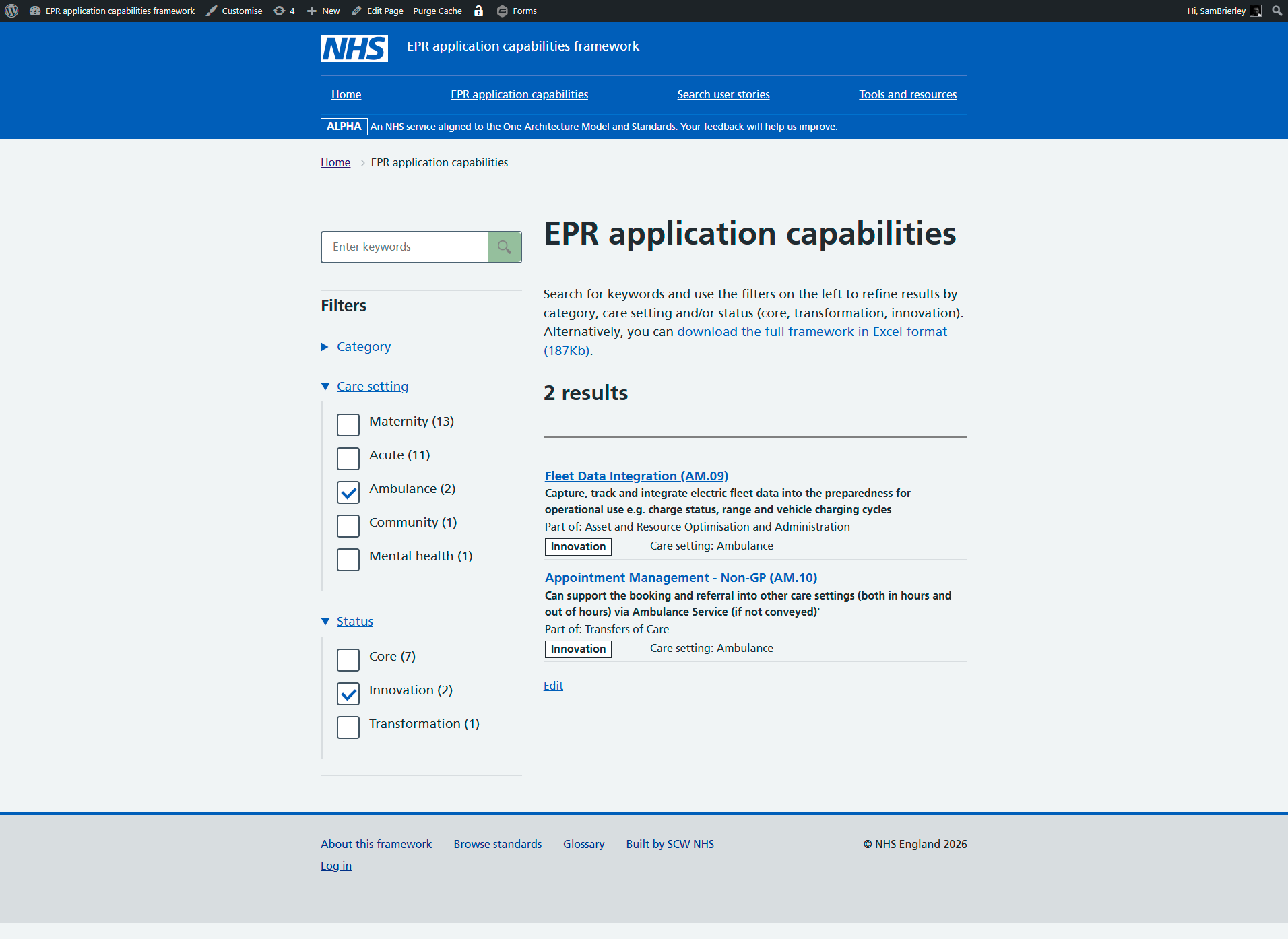
A footer menu links to:
- About this framework, a tabbed section providing information about the service, its users and EPRs (as child pages)
- Browse standards, a table of all standards linked from user stories
- Glossary, a glossary of terms (also a tab in ‘About this framework’)
- Privacy statement
- Accessibility statement
Setting up the Alpha prototype
Sprint 1 sets out why the team chose WordPress as a rapid prototyping tool.
Setting up content types
The Advanced Custom Fields (ACF) plugin was used to create:
- custom post types for application capabilities, user stories, standards
- custom field groups (for metadata) for each post type
- taxonomies (from metadata) to enable search filters on listing pages

Custom post types

Field groups
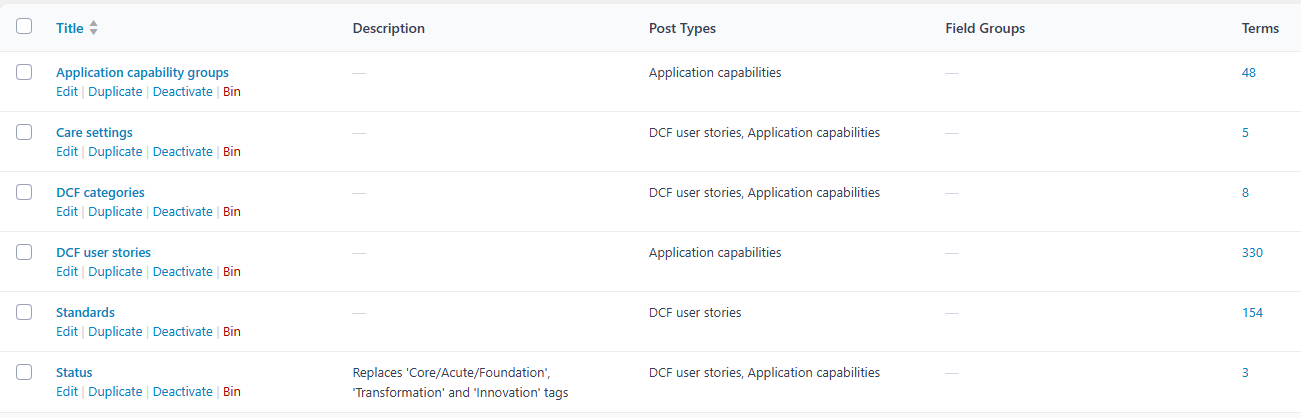
Taxonomies
WP All Import – with ACF addon - was used to write scripts that:
- created the three types of ACF custom post from Excel rows
- populated ACF field groups and taxonomies
- matched common ACF taxonomies on import
FacetWP – with Relevanssi for search - was used to:
- create and style listing pages for application capabilities and user stories
- create search filter (checkbox) facets from metadata
- create a result count ‘pager’ facet to show how many items were listed
- create a keyword search facet (using a Relevanssi index) for listing pages

Listings
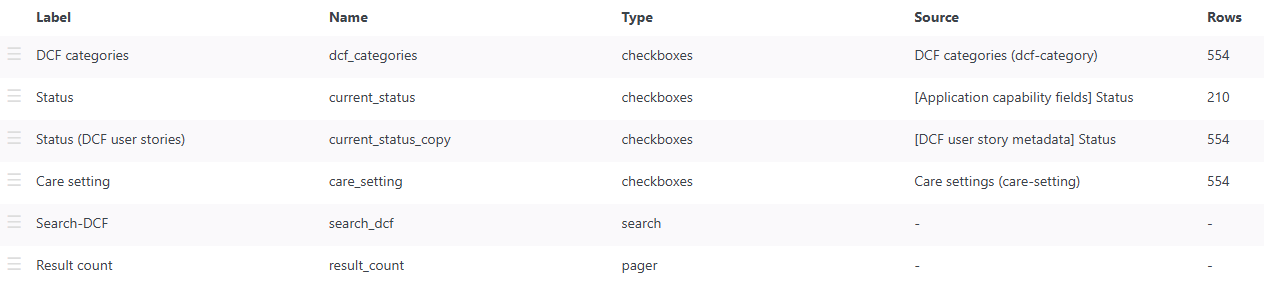
Facets
All FacetWP listings and facets were inserted as shortcode widgets in pages with sidebar – listings in main body and facets in the sidebar widget area. Both listings and facets were styled – using custom CSS - to match NHS style guidelines.
Category, Care setting and Status search filter facets were presented in standard NHS expanders, part of Nightingale Blocks, in the sidebar widget area.
FacetWP Listings (for Application capabilities and User stories) were set up using the Listings editor, using rows and columns:
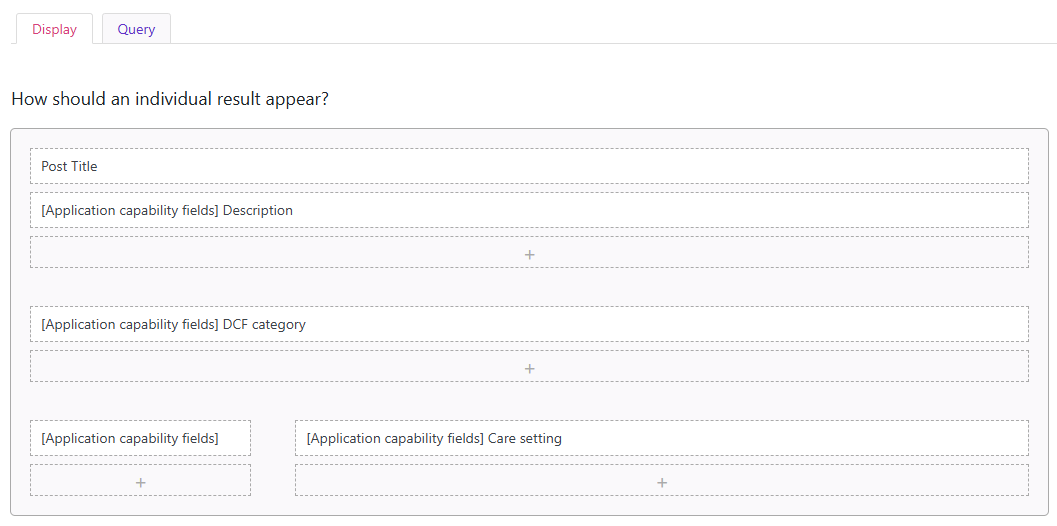
Listing editor: Display tab
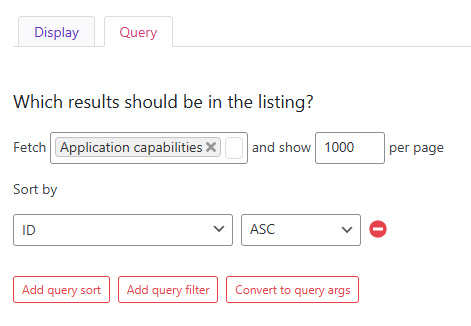
Listing editor: Query tab
Style tips:
- For ‘Status’ use CSS class ‘nhsuk-tag nhsuk-tag—white’ to display this field in the NHS tag style.
- For NHS table style, add a 1px bottom border, colour #d8dde0, 3px top and bottom padding and 2 px left and right padding.
- Set font size to 19px for the Post Title field and, under the ‘Basic’ tab, make sure Link is set to ‘Post URL’.
- Under the ‘Basic’ tag, add a display prefix where needed, eg ‘Care setting:’
Nested pages was used to create a sortable, more user-friendly admin menu.
Gravity Forms was used to create:
- a simple feedback form ‘Feedback on this service’
- two forms for the FP self-assessment tool concept demonstrator
Redirection was used to find and remove obsolete links
Password Protected and Disable Comments RB were used to protect the site.
Custom page templates, template parts and partials
A child theme for Nightingale was created to ensure customised templates were not overwritten when the theme updates.
For each ACF post type, a separate .php file was created to display custom template parts that could then be called from page templates (italics):
- appl-capability = fields-table.php (showing all ACF custom fields)
- standard = standard-metadata.php (showing desired metdata from this group)
- user-story = related-standards-by-tax.php (showing related standards) AND user-story-table.php (showing all other ACF custom fields)
This approach is more robust than the custom plugin/shortcode approach first tried.
The partial topnav.php was edited to add HTML to create a phase banner with a link to the feedback form, which is also linked from the homepage:
<div class="nhsuk-phase-banner">
<div class="nhsuk-width-container style_inner">
<span class="nhsuk-u-font-size-14">
<strong class="nhsuk-tag nhsuk-phase-banner__content__tag" aria-hidden="true">ALPHA</strong>
<span class="nhsuk-phase-banner__text">An NHS service aligned to the One Architecture Model and Standards. <a target="_blank" class="nhsuk-phase-banner" href="/provide-feedback/">Your feedback<span class="nhsuk-u-visually-hidden">opens in a new window</span></a> will help us improve.</span>
</span>
</div>
</div>
Standard pages
The team created a homepage, styled similarly to NHS Standards Directory but without the custom hero panel. Existing theme blocks were used.
The page:
- Describes the service’s purpose
- Sets out how you can use the service
- Warns the user this is an alpha prototype
- Presents direct links to popular categories of application capability
- Links to the tabbed page ‘About this framework’ which provides background and history to the service, tools and resources and a glossary of terms.
Menus
Top and footer menus were set up in the theme customiser.
Listing pages
Both Application Capabilities and User stories listings pages are default pages that use shortcode block widgets separated by a Separator block widget. The first shortcode is the Results count facet [facetwp facet="result_count"] and the second is the listing template – either [facetwp template="all_application_capabilities"] or [facetwp template="all_dcf_user_stories"]
Tools and resources
A prototype self-assessment tool was developed to allow Trusts to self-assess progress against Frontline digitisation requirements (following investment):
- a Gravity form asked a series of questions, with conditional logic causing more questions to appear where needed
- a custom plugin ‘NHS Capability Assessment Workflow’ created:
- a dashboard which could be repeated - or, importantly, answers replicated - for each of the 8 categories
- a dashboard which showed progress
- the option for users to download their results in Excel
The tool had 3 standard pages, each with a shortcode created by the custom plugin. Read the technical documentation for the prototype application capability self-assessment tool.
1. Assessment Dashboard
- Shows your organisation details and 8 capability groups.
- Each group shows a status: Not started / In progress / Completed.
- Click View capabilities to see the list for that group.
2. Section (the 8 DCF categories)
- A table of all capabilities in that group (e.g. Storage and Management of Records…’)
- For each capability the Actions column shows:
- Start (no answers yet)
- Edit | Duplicate answers (after you’ve saved once)
3. Capability Form
- A short form about that capability (e.g. usage %, system/vendor, plans)
- After Submit, you return to the Section and the row shows Completed.
This plugin was a quick concept demonstrator and is limited because:
- the team was not given access to a canonical list of Trusts which told them what type of care setting the organisation was (as pre-validated input)
- care settings were still listed as ‘acute’ or ‘acute+maternity’ which complicated conditional display of capabilities (the team was still fixing this)
Custom CSS
The Nightingale theme CSS can be customised by using its ‘Additional CSS’ functionality (Appearance > Customise > Additional CSS). Custom CSS was added to make the appearance of FacetWP facets, phase banner, sidebar widgets consistent with the NHS design system, and add a height-adjustable <hr> to match NHS Standards Directory (see Appendix A – custom CSS)
Populating capabilities, user stories and standards
Each of the 3 custom page types has an associated ACF custom field group for its metadata. Custom pages are created by importing the master spreadsheets into WordPress through the WP All Import plugin.
The team set up 2 import script templates:
- ‘25-02 DCF confluence import’ – for
user_storyandstandardpages. - ‘25-02 Excel import’ – for
appl_capabilitypages
New imports
You can either delete all the pages already created, or re-import and set WP Import to overwrite existing pages:
- Admin > WP All Import > New import
- Upload a spreadsheet
- Select the appropriate import script template
- For changes, drag and drop fields into the appropriate ACF or other fields
- Save any changes to the import script template (tip: use a date so you can delete obsolete templates later)
- Import the data
- Check the newly created or overwritten pages have your data
- Re-index FacetWP (Admin > Settings > FacetWP > Re-index (top right button), and Relevanssi (Settings > Relevanssi > Indexing > Build the index)
- Check search filters work correctly
Re-importing
To re-import, go to Admin > All Import > Manage Imports. This shows a history of imports, most recent first. Choose the import – you should be able to change the template without uploading a new Excel file.
Recreating the Alpha on a new platform
Non-WordPress platforms
- Custom pages: Use the Excel files to import
appl_capability,user_storyandstandardcontent, using your platform’s import capabilities. All other functionality in the Alpha is presentational and will be controlled by the new platform. Use the Alpha as a reference or user interface design specification. - Content pages: Admin > WP Export > New Export. Select post type ‘Pages’. Continue and configure advanced settings as needed. Save and run export, then choose your output format (csv, bundle, public URL for APIs, Zapier)
WordPress
- Download all the custom plugin code and documentation from including the WordPress backup
- Add hosting to your chosen domain name
- Install WordPress, the Nightingale theme and NHS Blocks/Companion
- Create a child theme (so updates do not overwrite custom code) and put the contents of the child theme folder in into it
- Install all the plugins listed above (inc. paid version of FacetWP)
- Reinstall the WordPress backup
- Recreate all custom code and CSS
- Recreate FacetWP Listing and Facets (if they have not saved)
- Check for absolute links (use Redirection to find/replace ‘dcf-prototype.uk’) – they should all be relative links but some may have slipped through
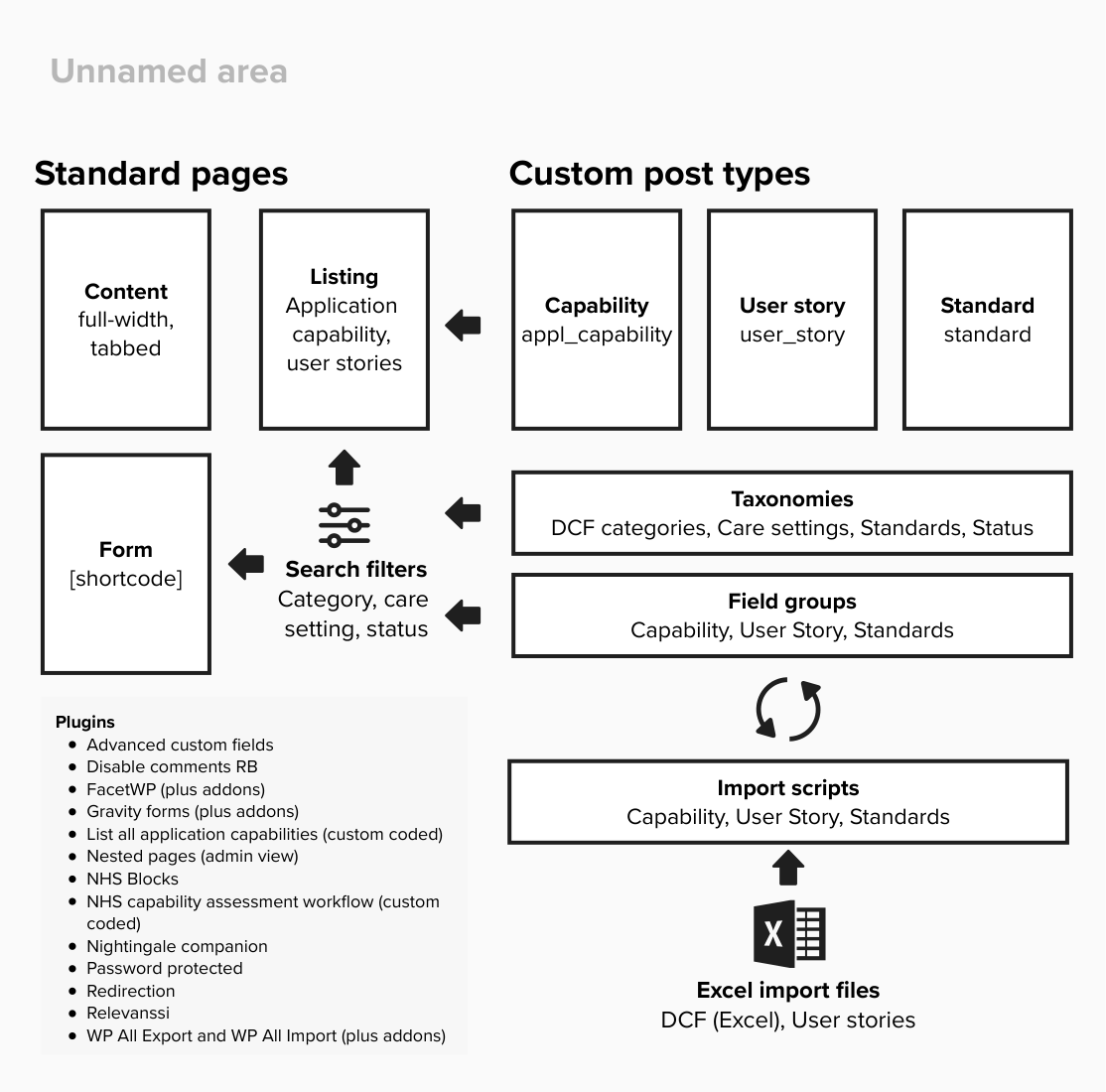
Diagrammatic overview of the prototype
Appendix A – custom CSS
/*************************************************************

* FacetWP checkbox → NHS-style (bigger + hover + focus)
* Scope: visual-only skin for .facetwp-checkbox items
* Safe to paste into Customizer → Additional CSS

*************************************************************/

/* 0) Neutralise any built-in background sprites so nothing shows "behind" */
.facetwp-type-checkboxes .facetwp-checkbox,
.facetwp-type-checkboxes .facetwp-checkbox.checked,
.facetwp-type-checkboxes .facetwp-checkbox.disabled {
background: none !important;
background-image: none !important;
}

/* 1) Checkbox row + label text */
.facetwp-type-checkboxes .facetwp-checkbox {
position: relative;
display: block;

/* Bigger box → bigger indent */
padding-left: 48px;        /* space for a 34px box + borders */
min-height: 38px;          /* comfortable hit-area size */
line-height: 1.5;
margin-bottom: 12px;
color: #212b32;            /* NHS body text */
cursor: pointer;
white-space: normal;       /* allow long labels to wrap */
user-select: none;
-webkit-tap-highlight-color: transparent;
outline: 3px solid transparent; /* prepare for custom focus */
transition: color .08s ease-in-out;
}

/* 2) The checkbox "box" (bigger) */
.facetwp-type-checkboxes .facetwp-checkbox::before {
content: "";
position: absolute;
top: 2px;
left: 0;
width: 34px;
height: 34px;
border: 2px solid #425563; /* NHS grey */
background: #fff;
border-radius: 4px;        /* NHS v10 has slightly rounder corners */
box-sizing: border-box;
transition: border-color .08s ease-in-out, background-color .08s ease-in-out, box-shadow .08s ease-in-out;
}

/* 3) Hover state: subtle emphasis around the box */
.facetwp-type-checkboxes .facetwp-checkbox:hover::before {
border-color: #005eb8;     /* NHS blue emphasis */
background-color: #f2f8fd; /* light blue tint on hover (UI affordance) */
}

/* 4) Checked "tick" */
.facetwp-type-checkboxes .facetwp-checkbox.checked::after {
content: "";
position: absolute;
top: 11px;                 /* tuned for 34px box */
left: 8px;
width: 16px;
height: 9px;
border: solid #005eb8;     /* NHS blue tick */
border-width: 0 0 4px 4px;
transform: rotate(-45deg);
}

/* 5) Keyboard focus ring (NHS style: yellow ring with dark halo) */
.facetwp-type-checkboxes .facetwp-checkbox:focus::before,
.facetwp-type-checkboxes .facetwp-checkbox:focus-visible::before {
outline: 3px solid #ffdd00;  /* NHS focus yellow */
outline-offset: 0;
box-shadow: 0 0 0 4px #212b32; /* dark halo for contrast */
}

/* 6) Disabled / "ghost" items (when FacetWP marks them as .disabled) */
.facetwp-type-checkboxes .facetwp-checkbox.disabled {
color: #768692;
cursor: not-allowed;
}

.facetwp-type-checkboxes .facetwp-checkbox.disabled::before {
border-color: #c0c6ce;
background: #f0f4f5;
}

.facetwp-type-checkboxes .facetwp-checkbox.disabled:hover::before {
border-color: #c0c6ce;
background: #f0f4f5; /* no hover change when disabled */
}

/* 7) Defensive fixes if theme styles interfere — uncomment if needed */
/* Ensure the facet container doesn't use flex that overlaps content */
/*
.facetwp-type-checkboxes { display: block !important; }
*/
/* If some higher-specificity rule reintroduces padding or background */
/*
.facetwp-type-checkboxes .facetwp-checkbox { padding-left: 48px !important; background: none !important; }

*/
/* Scope to the header/banner instance if needed (optional wrapper example) */
/* .site-header .nhsuk-phase-banner { ... } */
/* 1) Draw the line INSIDE the width container (not full width) */
.nhsuk-phase-banner .nhsuk-width-container {
position: relative;
padding-top: 6px;   /* compact top spacing as observed */
padding-bottom: 6px;/* compact bottom spacing as observed */
}

/* 1px hairline that spans only the container width */
.nhsuk-phase-banner .nhsuk-width-container::before {
content: "";
position: absolute;
top: 0;
left: 0;      /* respects the container edges */
right: 0;
height: 1px;  /* line thickness */
background: #0072ce; /* line colour */
}

/* 2) White typography inside the banner */
.nhsuk-phase-banner,
.nhsuk-phase-banner .nhsuk-u-font-size-14,
.nhsuk-phase-banner .nhsuk-phase-banner__text {
color: #ffffff !important;
}

/* 3) White links, underlined for clarity and contrast */
.nhsuk-phase-banner a {
color: #ffffff !important;
text-decoration: underline;
}

/* Maintain a strong focus style for accessibility */
.nhsuk-phase-banner a:focus {
outline: 3px solid transparent;
box-shadow: 0 0 0 3px #ffeb3b; /* high-contrast focus ring on dark bg */
color: #212b32;
background: transparent;
text-decoration: none;
}

/* 4) Reversed tag: no fill, white border, white text */
.nhsuk-phase-banner .nhsuk-tag.nhsuk-phase-banner__content__tag {
background: transparent !important;
color: #ffffff !important;
border: 1px solid #ffffff !important;
}

/* Optional: if your header already has a dark background, you can omit this.
If not, set a dark bg so the white type/line have contrast. */
.nhsuk-phase-banner {
/* background-color: #005eb8; */ /* NHS Blue (uncomment if needed) */
}

/* Remove the hero-content clamp completely and allow it to be customised*/
.home .wp-block-nhsblocks-heroblock .nhsuk-hero-content {
max-width: 780px !important;
width: 100% !important;      /* ensure it fills the container */
}

/* Make the sidebar sticky */
@media (min-width: 992px) { /* only for desktop */
.nhsuk-grid-column-one-third,
aside.sidebar,
#secondary {
position: sticky;
top: 2rem; /* space under NHS header */
height: fit-content;
align-self: start;
}
}

/* Override top border, padding, and margin for sidebar widget blocks */
#secondary .nhsuk-related-nav.widget_block {
border-top: 0px; border-bottom: 1px solid #d8dde0; /* change these values */
padding-top: 0px;
padding-bottom: 0px;
margin-bottom: 6px;
}

/* NHS Nightingale-style FacetWP search input */
.facetwp-facet.facetwp-type-search .facetwp-input-wrap {
display: flex;
align-items: center;
border: 2px solid #4c6272; /* NHS input border colour*/
border-radius: 4px;
background: #ffffff;
padding: 0;
height: 48px; /* matches NHS search height */
box-sizing: border-box;
}

/* Input field styling */
.facetwp-facet.facetwp-type-search .facetwp-search {
flex: 1;
border: none;
padding: 0 16px;
font-size: 1rem;
line-height: 1.4;
outline: none;
height: 100%;
border-radius: 4px 0 0 4px;
}

/* Search icon styling (uses FontAwesome by default) */
.facetwp-facet.facetwp-type-search .facetwp-icon {
width: 48px;
height: 100%;
background: 	#007f3b; /* NHS CTA green */
color: #ffffff;
display: flex;
justify-content: center;
align-items: center;
border-radius: 0 4px 4px 0;
cursor: pointer;
font-size: 1.2rem;
}

/* Hover state */
.facetwp-facet.facetwp-type-search .facetwp-icon:hover {
background: 	#ffeb3b; /* darker NHS blue */
}

/* Style for all FacetWP Pager facets */
.facetwp-type-pager {
font-size: 2rem; /* bigger text */
font-weight: 700;    /* bold */
}

/* Full‑width configurable height (px) HR you can call from any block */
.fullwidth-rule {
display: block;           /* ensures it behaves like a block element */
width: 100%;              /* full container width */
height: 4px;              /* thickness */
background-color: #d8dde0;
border: none;             /* remove default browser HR styling */
margin: 0;                /* optional – change if you want spacing */
padding: 0;
}