Sprint 2
WGLL’s relationship to NHS Blueprints
The team met with the Assistant Director leading the NHS’s Optimisation, Blueprinting & Knowledge Sharing programme. Blueprints - which cover care settings, care pathways and digital capabilities - and other supporting materials align to specific dimensions in the WGLL guidance, showcasing good practice in a number of key areas.
The Blueprinting team has worked with over 100 NHS Trusts and healthcare organisations to produce Blueprints. Around 90% of all NHS Trusts are registered on the FutureNHS platform, with over 3,300 users.
Blueprints provide step-by-step guides to NHS organisations to enable them to carry out digital transformation more quickly and cost-effectively than in the past. This collection of knowledge assets and shared learning will be a core part of the What Good Looks Like (WGLL) support offer, highlighting good practice examples of delivering technology in a wide range of NHS organisations. They highlight important ingredients needed for sustainable health improvements such as organisational leadership and culture, clinical and staff engagement as well as the people and processes required.
The WGLL team was given access to the Blueprinting team’s Excel index, which provided a summary overview of all blueprints and their categorisation (eg user, care setting, project type). The team decided to explore if improved signposting to FutureNHS blueprints could improve WGLL’s usability and utility.
Importing blueprints
The team wireframed an IA based on the index, to decide if content should be tagged to a taxonomy (hierarchical), fields (metadata) and/or tags (non-hierarchical). The team created ACF custom field groups and hierarchical and non-hierarchical taxonomies in WordPress and mapped them to the Excel spreadsheet columns to ensure that all fields could be imported.
The team then created a wireframe blueprint mockup - essentially the information from the index presented in a visual, single post for each row in the Excel file.
They then wrote a plug-in that created an array from fields and taxonomies and presented this as an NHS styled table, calling Nightingale’s existing CSS, via a shortcode. This shortcode was added into the import template.
Finally, the team ran the import to create 300 blueprints. It wasn’t perfect - for example, some URLs were missed - but it worked. The import tool can delete and re-import but the team felt they had enough to explore the idea of a signposting index tool for blueprints.
Creating a search tool
The team started with an A-Z listing using the Alphalisting plugin. But this was hard to use because the blueprint titles were not consistently structured, there are 300 of them and many began with ‘An initative to…’
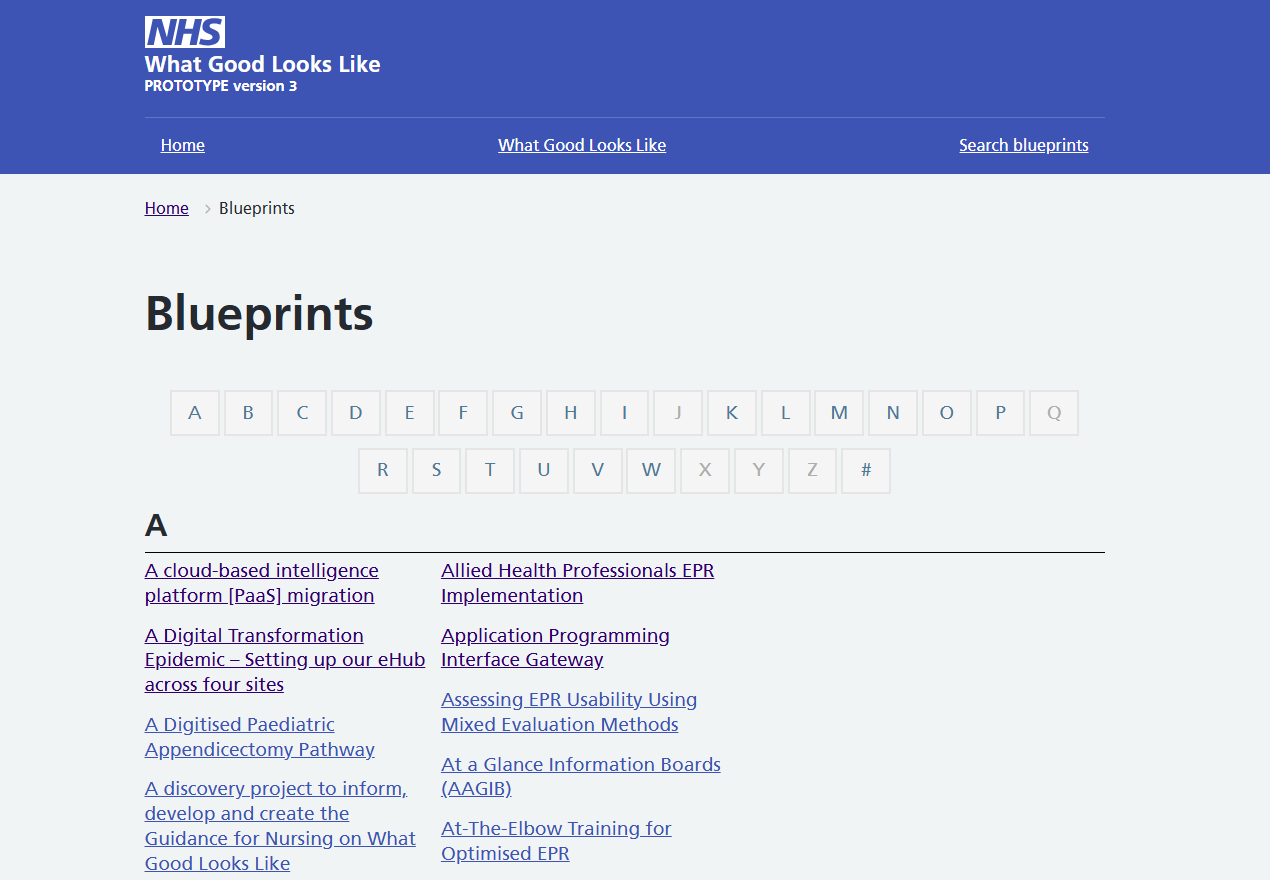
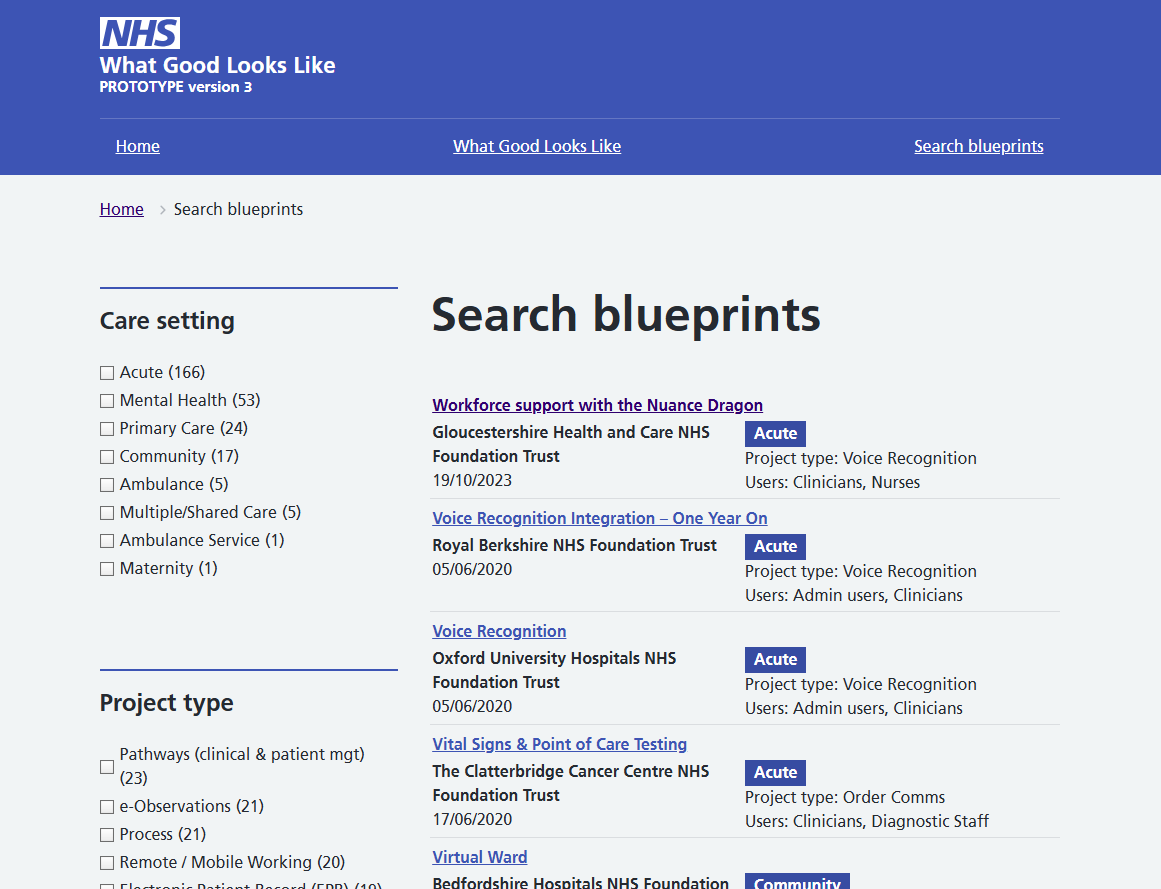
Instead, the team used a demo version of FacetWP to create search facets and listings. The listing was styled using the plugin, with nhsuk-tag for care settings. This was easier to use and the A-Z was dropped. The team felt it could be revisited if there was ever a more hierarchical taxonomy to use.
Handling redirects without coding
The team used the Redirection plugin to redirect selected taxonomy terms (eg ‘Acute’) to a custom filtered listing by replacing the taxonomy URL /care-setting/acute with a query string to the search returns page /search-returns/?_care_setting=acute. The team wanted this to be the main search returns page.

Redirecting site search
Because the team only had a demo version of FacetWP (the full version is $99), it wasn’t trivial to redirect the built-in Nightingale search tool to work with the faceted search page. Users might need to search for other information, excluding or including Blueprints.
The team wasn’t sure if the work needed was justified at this point in the alpha, certainly not until a user need could be explored through research. The team switched off the site search function in Nightingale settings in favour of a ‘Search blueprints’ page in the main navigation.
Was it worth exploring?
It didn’t take long - under a day’s work. There were a few glitches which the team manually fixed, mainly relating to multiple category groupings. More data cleaning prior to import would resolve these issues. But overall, the team felt it helped them:
- understand the different types of blueprint and how they are categorised (the site is easier to browse than the Excel spreadsheet)
- get a sense of how Blueprints are categorised against WGLL (interestingly, they are categorised to DMA categories under each of the 7 WGLL pillars)
- start thinking about how content linking/cross categorisation might work